Article Summary: This article explains how the "Is My Site Down" tool works, what HTTP status codes mean, and how to distinguish between a site that is down for everyone versus a local connectivity issue. It covers common causes of downtime, how DNS caching and ISP routing affect reachability, and how this tool compares to dedicated uptime monitoring services.
What Is the "Is My Site Down" Tool?
The Is My Site Down tool performs an external HTTP reachability test against any website you specify. It sends an HTTP GET request from our server to both the HTTP and HTTPS versions of the URL and reports the HTTP status code, response time, and any redirect chain encountered. Because the request originates from an external server — not your computer or your local network — the result reflects whether the site is reachable from the public internet, independent of your personal connection.
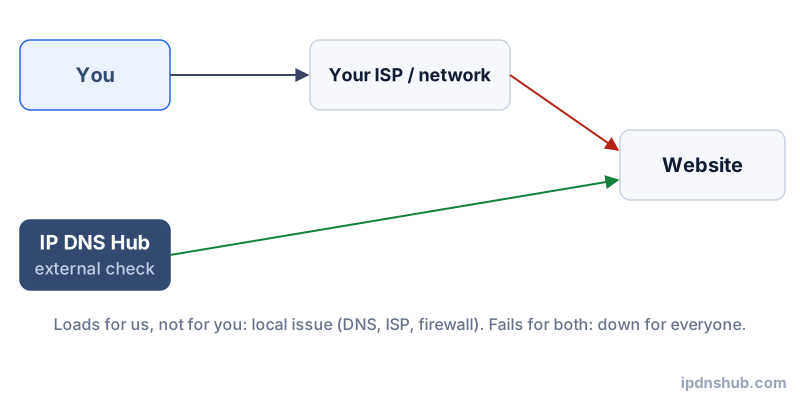
This distinction is critical. If you open a website and see an error, there are two fundamentally different explanations: the site is down for everyone, or the site is up but unreachable specifically from your location. Mixing up these two scenarios wastes significant troubleshooting time. This tool resolves the ambiguity instantly.
Unlike dedicated uptime monitoring services that continuously test from dozens of global locations, this tool provides an on-demand spot check from a single external vantage point. It is ideal for immediate, manual verification rather than long-term availability tracking.
How It Works
The HTTP Request Process
When you enter a domain, our server performs the following steps:
- DNS resolution — the domain is resolved to an IP address using our server's DNS resolver. If this step fails, the site is considered unreachable (DNS failure).
- TCP connection — a TCP connection is established to port 80 (HTTP) and port 443 (HTTPS) on the resolved IP address.
- HTTP request — an HTTP GET request is sent. Our tool follows redirects and reports the full redirect chain.
- Response evaluation — the HTTP status code and response time are recorded and displayed.
A site is considered UP if any request in the chain receives a response — including redirects (301/302) and successful responses (200). A site is considered DOWN if the connection times out, the TCP connection is refused, DNS resolution fails, or the server returns a 5xx error code.
Response Time Measurement
The response time shown reflects the total elapsed time from initiating the TCP connection to receiving the first byte of the HTTP response. This is equivalent to the Time to First Byte (TTFB) metric used in web performance analysis. High TTFB values (above 2–3 seconds) can indicate server overload, slow database queries, or network congestion — even when the site is technically "up."
Down for Everyone vs Just for Me
When a website fails to load in your browser, the experience feels the same regardless of cause — but the diagnosis and fix are completely different:
Down for Everyone
If our external test also fails to reach the site, the problem is on the server side or in the public routing to that server. Possible causes include:
- The web server process has crashed or been stopped.
- The hosting provider is experiencing an outage.
- The domain's DNS records have expired, been deleted, or are misconfigured.
- The server is overwhelmed by traffic (DDoS attack or traffic spike).
- SSL/TLS certificate has expired, causing HTTPS to fail.
Down Just for You
If our test shows the site is UP but you cannot reach it, the problem is local to your connection. Common causes include:
- DNS cache poisoning or staleness — your operating system or router is serving a cached DNS record pointing to an old or incorrect IP address. Flushing your DNS cache (e.g.,
ipconfig /flushdnson Windows) often resolves this. - ISP routing issue — your ISP may have a routing problem that prevents reaching the destination network, even though the site is reachable from other networks.
- VPN or proxy interference — your VPN client may be routing traffic through a blocked region or misconfigured exit node.
- Local firewall or hosts file — a security application or manual hosts file entry may be blocking the domain on your device.
- Browser cache — the browser may be displaying a cached error page even though the site recovered.
Common Use Cases
Immediate Outage Triage
When a website goes down, the first question from every stakeholder is "is it really down?" This tool answers that immediately, before you spend time checking server logs, restarting services, or calling your hosting provider. A single check confirms whether the problem requires server-side intervention or local troubleshooting.
Verifying a Deployment
After deploying an update — especially one that changes server configuration, DNS records, or SSL certificates — running this check confirms that the site is accessible externally. It catches issues like misconfigured HTTPS redirects, expired certificates, or DNS propagation delays.
Checking After DNS Changes
After updating DNS records, this tool lets you verify that the new records have propagated and the site is reachable at the new address. Since our server uses its own DNS resolver, the result reflects public DNS propagation rather than your local resolver's cached records.
Technical Reference
| Status Code | Meaning | Likely Cause |
|---|---|---|
| 200 | OK — site is up and responding normally | Healthy server; content returned successfully |
| 301 / 302 | Redirect — site is up, redirecting to another URL | HTTP to HTTPS redirect, domain alias, or URL change |
| 400 | Bad Request — server received a malformed request | Misconfigured request or invalid URL format |
| 401 | Unauthorized — authentication required | Password-protected resource; site is up but access denied |
| 403 | Forbidden — server refused the request | IP block, directory listing disabled, or access restriction |
| 404 | Not Found — the requested resource does not exist | Deleted page, broken URL, or misconfigured route |
| 500 | Internal Server Error — server crashed processing the request | Application bug, unhandled exception, or misconfiguration |
| 502 | Bad Gateway — upstream server returned an invalid response | Reverse proxy (Nginx/Apache) cannot reach the application server |
| 503 | Service Unavailable — server is overloaded or in maintenance | Traffic spike, maintenance mode, or server capacity limit reached |
| 504 | Gateway Timeout — upstream server did not respond in time | Slow backend, database timeout, or network latency between proxy and app |
Frequently Asked Questions
What does "down for everyone" mean?
"Down for everyone" means our external server — operating on the public internet with no connection to your local network — also failed to reach the website. This confirms the problem is not specific to your device, browser, or ISP. The site is either offline, misconfigured, or experiencing an infrastructure outage that affects all visitors globally.
My site responds here but not in my browser — why?
Several local factors can prevent your browser from reaching a site that is otherwise publicly accessible. The most common are a stale DNS cache (flush it with ipconfig /flushdns on Windows or sudo dscacheutil -flushcache on macOS), a VPN that routes traffic through a blocked or misconfigured exit point, a browser extension or security software blocking the domain, or an ISP routing issue affecting only your connection. Try accessing the site from a mobile device using cellular data — if it works, the issue is definitively on your local network.
What causes a 502 Bad Gateway error?
A 502 Bad Gateway error occurs when a reverse proxy (such as Nginx, Apache, Cloudflare, or a load balancer) receives an invalid or no response from the upstream application server it is forwarding requests to. Common causes include the application server (Node.js, PHP-FPM, a .NET process) crashing or restarting, a misconfigured proxy_pass directive, or a firewall blocking communication between the proxy and the application layer. The web server itself is running (it generated the 502), but the backend it depends on is not.
How is this different from a monitoring service like UptimeRobot?
Services like UptimeRobot, Pingdom, or Better Uptime continuously monitor your site on a schedule (every 1–5 minutes) from multiple global locations and alert you when downtime is detected. Our tool is an on-demand spot check from a single location — useful for immediate manual verification but not a substitute for continuous monitoring. For production websites, use a dedicated monitoring service for automated alerting; use this tool for quick manual checks and troubleshooting.
Can I use this to test a local server?
No. This tool sends requests from our external server on the public internet. A local server (running on localhost, a private IP range such as 192.168.x.x or 10.x.x.x, or behind a NAT without port forwarding) is not reachable from the public internet. To test a local server externally, you would need to configure port forwarding on your router, use a tunnel service like ngrok, or deploy to a publicly accessible environment first.
Conclusion and Takeaways
The Is My Site Down tool provides instant clarity on one of the most common and frustrating questions in web operations: is the site actually down, or is the problem on my end? By performing a genuine external HTTP reachability test and returning the real HTTP status code and response time, it cuts through ambiguity and directs your troubleshooting effort in the right direction. Use it as the first step whenever a site appears unreachable — before restarting servers, contacting hosting support, or suspecting your own connection.
Ready to Test?
Use Is My Site Down above — no login required, instant results.