Article Summary: This article explains how the Traceroute tool works, how to read hop-by-hop output, what common patterns like timeouts and latency spikes mean, and how traceroute compares to ping and MTR. It includes a reference table for interpreting hop results and answers the most frequently asked questions about traceroute diagnostics.
What Is Traceroute?
Traceroute is a network diagnostic utility that maps the path packets take from one host to another across the internet. While ping tells you whether a destination is reachable and how long the round-trip takes, traceroute reveals every intermediate router along the way — giving network engineers a complete picture of the routing topology between two endpoints.
The tool was first implemented by Van Jacobson in 1987 and has remained a cornerstone of network diagnostics ever since. On Unix-based systems the command is traceroute; on Windows it is tracert. Our online tool performs a server-side traceroute from an external server, making it possible to see the routing path from a neutral, external vantage point without installing any software.
Traceroute is particularly valuable for diagnosing where in the network a latency spike or connectivity failure occurs — whether it is at your ISP, at a major peering point, at a transit provider, or at the destination's own network edge.
How It Works
The TTL Mechanism
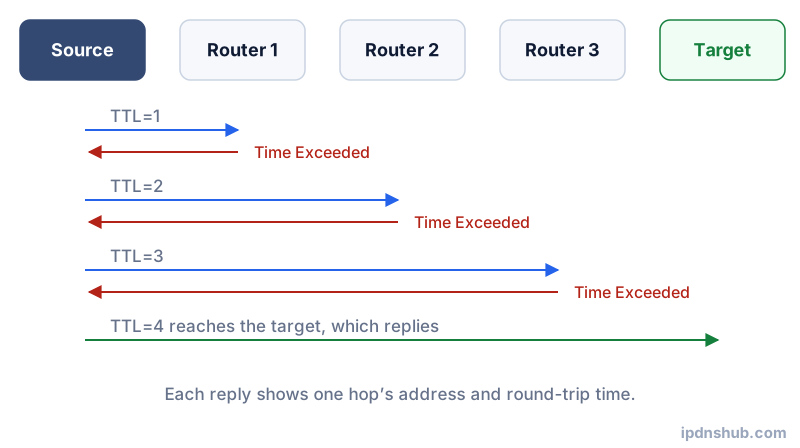
Every IP packet carries a TTL (Time to Live) field — an integer that is decremented by 1 at each router the packet passes through. When TTL reaches zero, the router discards the packet and sends an ICMP Time Exceeded message back to the source. Traceroute exploits this behavior deliberately.
The tool starts by sending packets with TTL=1. The first router in the path decrements TTL to zero, discards the packet, and sends back a Time Exceeded message — revealing the first hop's IP address and the RTT to that router. The tool then sends packets with TTL=2, reaching the second router, and so on. This process continues until either the destination host responds or the maximum hop count (typically 30) is reached.
Reading Hop-by-Hop Output
Each row in the traceroute output represents one network hop. The columns show the hop number, the IP address (and reverse-DNS hostname if available) of the router at that hop, and the round-trip time (RTT) to that router. RTT values that are significantly higher than the previous hop indicate that the link between those two routers is a network bottleneck or that the router itself is slow to respond to ICMP.
Three asterisks (* * *) in place of an IP address mean the router at that hop did not respond to the ICMP probe within the timeout window. This is common — many routers are configured to rate-limit or completely drop ICMP Time Exceeded messages. A row of * * * does not necessarily indicate a problem if subsequent hops respond normally.
Common Use Cases
Identifying Network Bottlenecks
When a service is slow, traceroute can pinpoint exactly which network hop is responsible for the bulk of the latency. If hops 1 through 8 all show RTT under 20 ms but hop 9 jumps to 180 ms, the link between hop 8 and hop 9 is the bottleneck — often a BGP peering point or transoceanic submarine cable.
Diagnosing Routing Loops and Black Holes
Occasionally, misconfigured routers create routing loops where packets cycle between two or more routers indefinitely. Traceroute reveals this as a sequence of the same IP addresses repeating across multiple hops with incrementing TTL values. A routing black hole — where packets are silently discarded — appears as a traceroute that terminates with all remaining hops showing * * *.
Verifying BGP Routing Changes
After a network change, infrastructure engineers use traceroute to confirm that traffic is now following the expected AS path (Autonomous System path). By examining the ASN of each hop's IP address, engineers can verify that traffic is routing through the correct transit providers and peering relationships.
ISP Troubleshooting
When reporting connectivity issues to an ISP, running a traceroute provides concrete evidence of where the problem is occurring. If the traceroute reaches the ISP's own infrastructure and stops, the problem is on their network — not on the destination server or your local equipment.
Traceroute vs MTR
MTR (My Traceroute) combines the path discovery of traceroute with the continuous packet sending of ping. While a standard traceroute sends a fixed number of probes and stops, MTR continuously sends packets to every hop and updates statistics in real time — showing packet loss and jitter at each hop as they develop over time.
Use standard traceroute when you need a quick snapshot of the routing path. Use MTR when you are diagnosing intermittent packet loss or jitter, because the continuous probing reveals patterns that a one-shot traceroute would miss. MTR is available as a Linux command-line tool and as WinMTR on Windows. Our traceroute tool provides the single-pass path view; for continuous monitoring, run MTR locally against the same target.
Technical Reference
| Hop Response | Meaning | Action |
|---|---|---|
| IP with low RTT | Healthy hop, normal forwarding | None required |
| IP with high RTT vs previous hop | Bottleneck or slow ICMP processing at this router | Investigate the link between this and the prior hop |
| * * * (timeout) | ICMP blocked by router or no ICMP response configured | Usually harmless if subsequent hops respond normally |
| Last hop timeout | Destination host is unreachable or blocking ICMP | Use ping to confirm reachability independently |
| Consistently increasing RTT | Distance-related latency or congested long-haul link | Normal for cross-ocean paths; investigate if jump is sudden |
Frequently Asked Questions
What is traceroute?
Traceroute is a network diagnostic tool that maps the sequence of routers (hops) that IP packets traverse between a source and a destination. It works by exploiting the TTL (Time to Live) mechanism in IP packets, incrementally sending packets that expire at each successive router to reveal the full routing path and the latency at each hop.
What does * * * mean in traceroute output?
Three asterisks (* * *) mean the router at that hop did not send an ICMP Time Exceeded response within the timeout window. This is very common — many routers are configured to drop ICMP probes for performance or security reasons. As long as subsequent hops in the trace do respond, the * * * hop is not a problem. It only becomes significant if all remaining hops after a certain point show * * *, which may indicate the destination is unreachable.
How many hops is normal?
A typical internet path between two hosts on the same continent contains 10 to 20 hops. Transoceanic paths — for example, from Europe to Asia — may show 20 to 30 hops. Paths within a single datacenter or regional cloud provider may be as short as 4 to 8 hops. The number of hops alone does not determine latency; the geographic distance and link speeds between hops matter far more.
Why do some hops show higher latency than the final destination?
This apparent paradox occurs because intermediate routers often give low priority to generating ICMP Time Exceeded messages — the response that traceroute relies on. The router is forwarding actual traffic quickly, but it queues ICMP responses at lower priority. Meanwhile, the destination host may respond to ICMP echo requests promptly. The high per-hop RTT reflects the router's ICMP response priority, not actual forwarding latency for regular traffic.
What is the difference between traceroute and tracert?
Traceroute is the name of the utility on Unix-based systems (Linux, macOS). Tracert is the equivalent command on Windows. Both accomplish the same core function — mapping the routing path using TTL-based ICMP probes — but differ in default behavior: Unix traceroute traditionally uses UDP probes by default (though ICMP mode is available with the -I flag), while Windows tracert always uses ICMP echo requests. Our server-side tool uses ICMP, consistent with tracert behavior.
Conclusion and Takeaways
Traceroute is an indispensable tool for anyone who needs to look beyond simple reachability and understand the actual routing path packets take across the internet. By revealing each network hop, its IP address, hostname, and round-trip latency, traceroute transforms an abstract network path into a concrete, auditable sequence of routers. Whether you are diagnosing slow performance, investigating routing anomalies, verifying BGP changes, or building a case for an ISP support ticket, a traceroute is almost always the right second step after a failed ping.
Ready to Test?
Use the Traceroute tool above — no login required, instant results.